Meta Config
The APP supports the meta.json configuration file, which can be used as needed.
If the APP.tar.gz package contains custom configuration files, the gateway Web UI renders the interface based on the fields defined in the meta.json file within the package.
Users can modify and save configurations through the gateway Web Console, and the code within the app retrieves the configuration content via API functions.
Note
Configuration change notifications are not currently supported. Scripts need to periodically read and compare configurations to detect changes.
Prepare Code
Write a file named hello.py with the following content:
import cassiasys


def main():
    print("hello")

    try:
        # read user config ok: {"config1":"value1","config2":"value2"}
        config = cassiasys.read_user_config()
        print(f"read user config ok: {config}")
    except Exception as e:
        print(f"read user config failed: {e}")


main()
meta.json
Write a file named meta.json with the following content:
{
    "name": "hello",
    "version": "1.0.0",
    "config_items": [
        {
            "name": "config1",
            "type": "text"
        },
        {
            "name": "config2",
            "type": "text"
        }
    ]
}
Package APP
The code files need to be packaged into a Cassia APP package before they can be uploaded and run. A sample packaging script is as follows:
After successful execution, you will see hello.1.0.tar.gz in the build directory.
#!/bin/bash

#!/bin/bash

NAME_VER=hello.1.0
TAR_GZ=${NAME_VER}.tar.gz

rm -rf build/"$NAME_VER"
rm -rf "$TAR_GZ"

mkdir -p build/"$NAME_VER"
cp hello.py build/"$NAME_VER"
cp meta.json build/"$NAME_VER"

cd build || exit
gtar -zcvf "$TAR_GZ" "$NAME_VER" || tar -zcvf "$TAR_GZ" "$NAME_VER"

ls -lh "$NAME_VER".*

cd - || exit
Upload APP
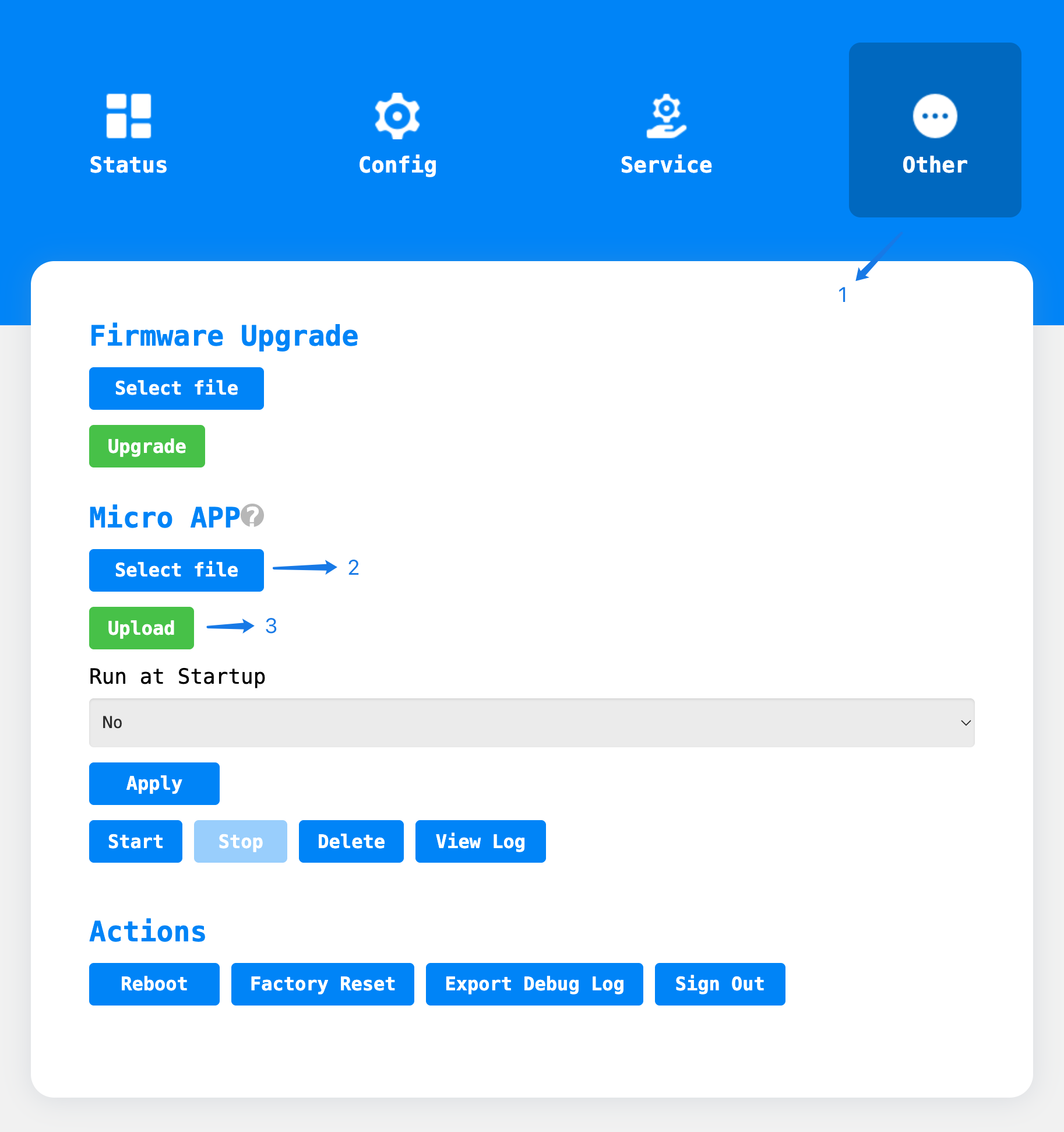
First, navigate to the
Otherpage and scroll to theMicro APPsection.Click the
Select filebutton and choose thehello.1.0.tar.gzfile.Click the
Uploadbutton to upload the APP file.Please wait for the
Upload Successfulprompt to appear.
Modify configuration
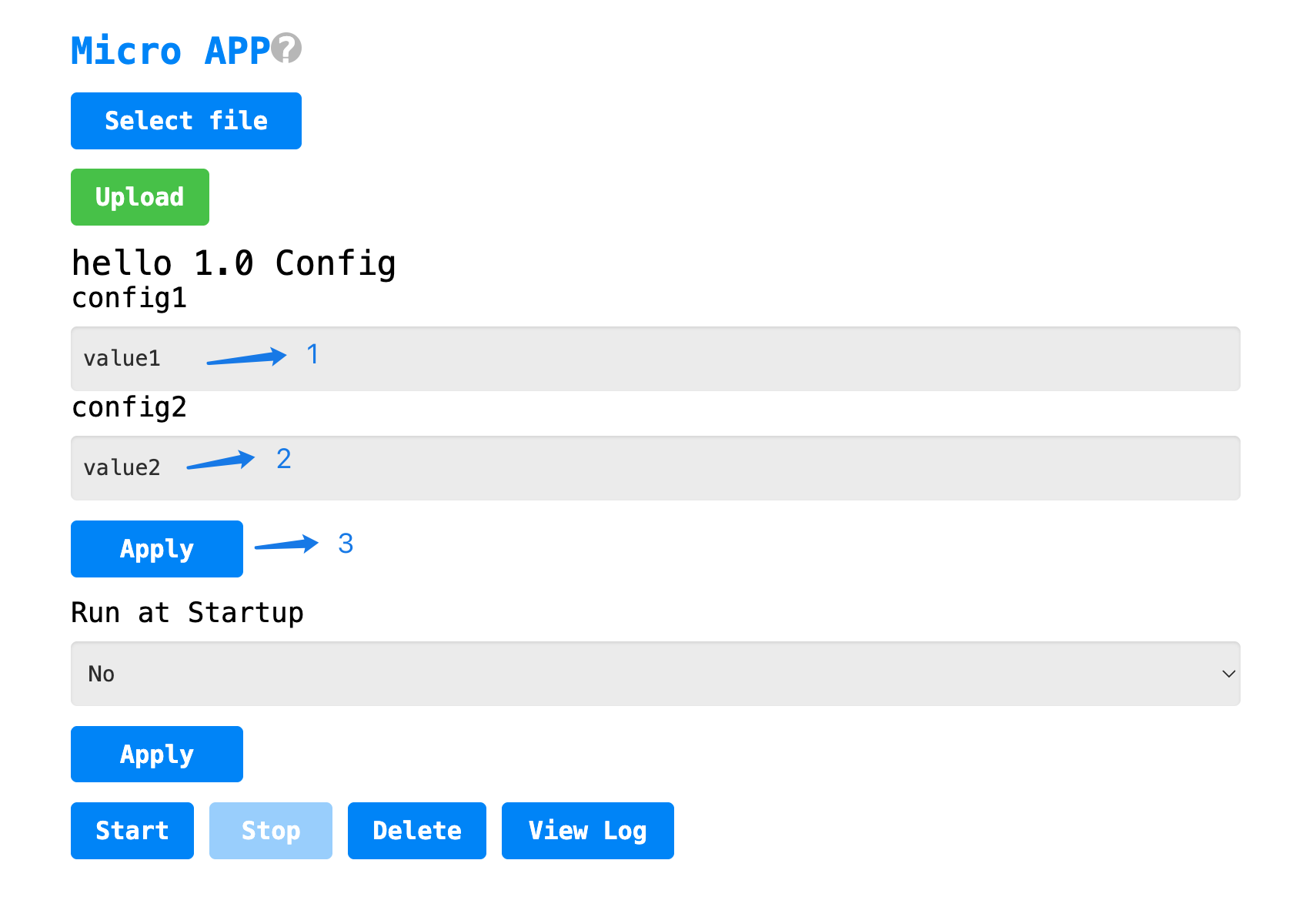
Modify the configuration of
config1tovalue1.Modify the configuration of
config2tovalue2.Click the
Applybutton.
Run APP
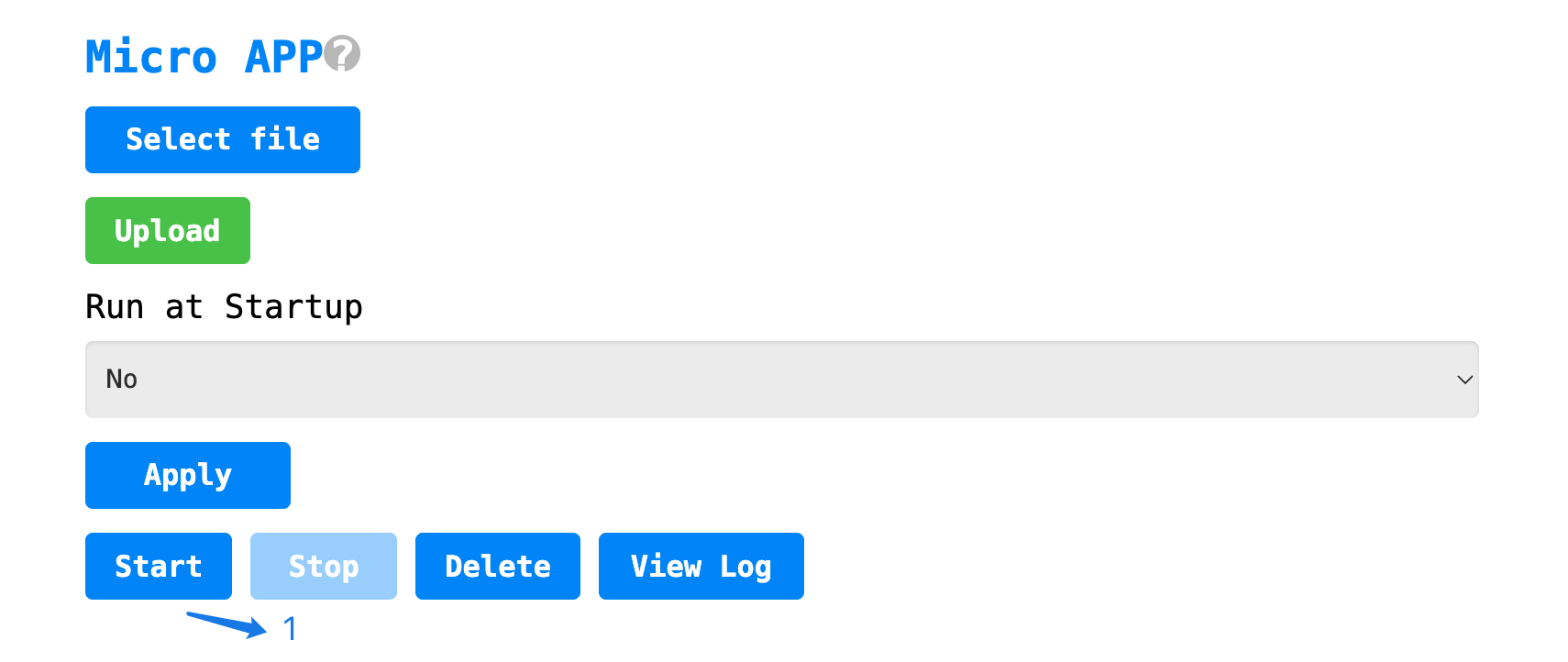
Click the
Startbutton to run the app.
View Results
Click
View Logto see the normal output of the running results as follows:
hello
read user config ok: {"config1":"value1","config2":"value2"}